AI Product Photo Backgrounds: From Phone Shot to Listing-Ready
21 ноября 2026 г.5 мин чтенияSheenCloud
AI Product Photo Backgrounds: From Phone Shot to Listing-Ready
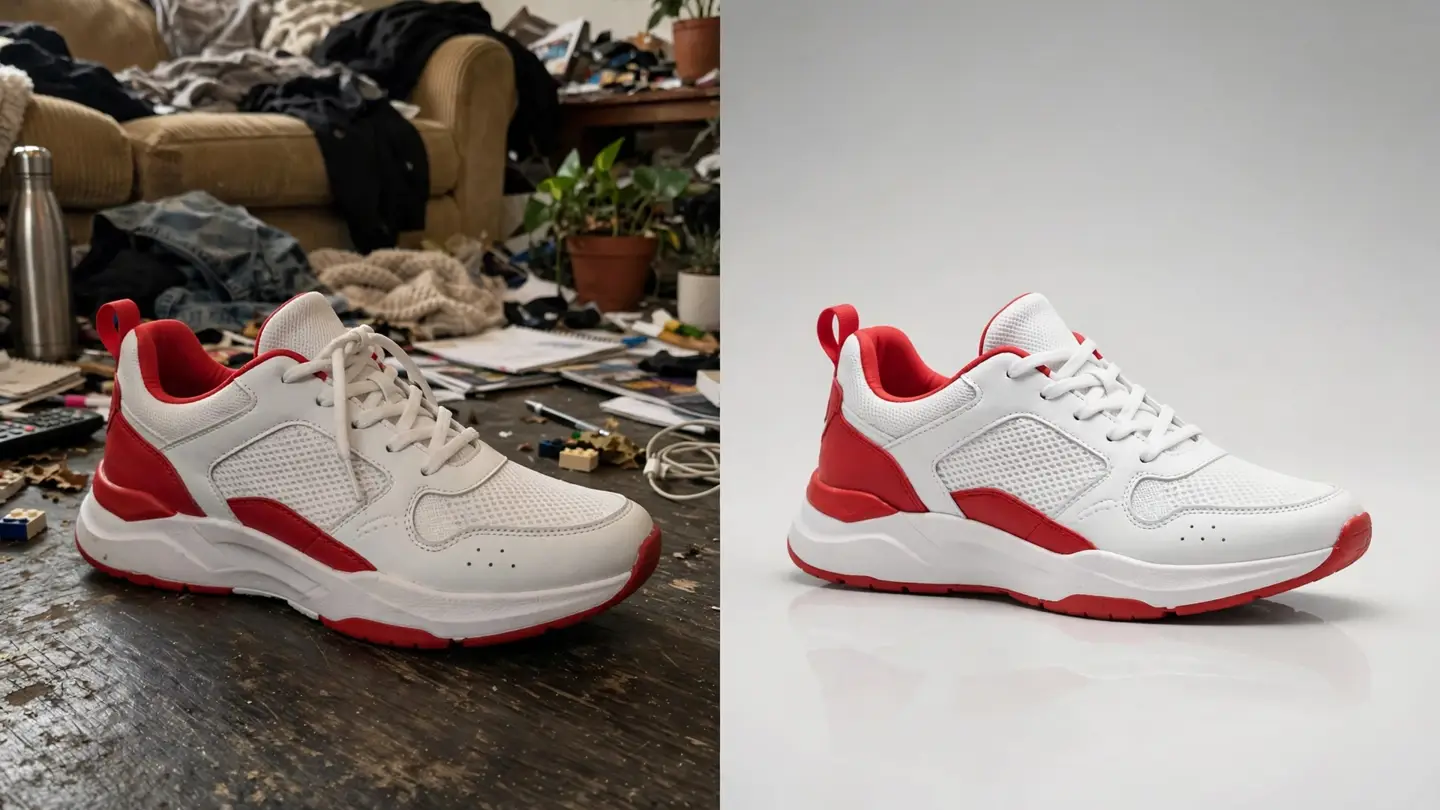
You can remove the background from a product photo with AI by uploading the shot and picking a new background — the background editor cuts the product out, blends the edges, and matches the light so the result looks like a studio photo. A phone shot on a messy table becomes a clean listing image in about a minute, with no editing software and no manual cutout.
How do I remove the background from a product photo with AI?
- Upload the product photo. One clear shot of the product, well lit, with the whole product in frame. A plain background in the original helps, but it is not required — the tool finds the product edges itself.
- Pick the new background. Choose one from the built-in library — grey, a solid colour, a scene, or fully transparent — or upload your own background image (a plain white one for marketplaces, for example).
- Describe the result (optional), then start the task. A short prompt such as "a sunny beach boardwalk at golden hour" steers the lighting and setting. The tool composites the product onto the new background and you preview the result before downloading. Finished tasks stay in your task history.
See a real example on the background edit page: a pair of white sneakers shot on light grey, re-shot onto a golden-hour boardwalk — same shoe, new scene, no reshoot.
What does AI background removal cost?
Background editing costs 200 credits per image. New users get 1,000 free credits on sign-up, which covers five background edits. The studio shows the cost before you confirm, so there are no surprises — one image, one fixed price.
Credits are reserved when the task is created, and failed or unfinished tasks are refunded automatically.