How to Replace a Person in a Video with AI (No Reshoot)
November 9, 20265 min readSheenCloud
How to Replace a Person in a Video with AI (No Reshoot)
You can replace a person in a video with AI by uploading 1–5 photos of the person you want and the video to change. The AI video character replacement tool swaps the whole person — face, body, and outfit — while keeping the scene, the motion, and the timing of the original video. You do not need to reshoot, and you do not need editing software.
How do I replace a person in a video with AI?
- Upload 1–5 photos of the person you want. Clear photos work best — front-facing, good lighting, the whole person visible. JPG, PNG, or WebP, up to 10 MB each.
- Upload the video to change. MP4, WebM, MOV, or M4V, up to 100 MB. This is the video whose person gets replaced.
- Pick length, shape, and quality, then start. Videos run 5, 10, or 15 seconds; aspect ratios 16:9, 1:1, 9:16, or 4:3; resolutions 480p, 540p, 720p, or 1080p. The studio defaults are 5 seconds, 480p, 16:9.
- Download the result. Finished tasks stay in your task history with a video player, so you can check the result before you use it anywhere.
Processing time depends on the video length, the resolution, and the queue. Credits are reserved when the task is created, and failed or unfinished tasks are refunded automatically. New users get 1,000 free credits on sign-up.
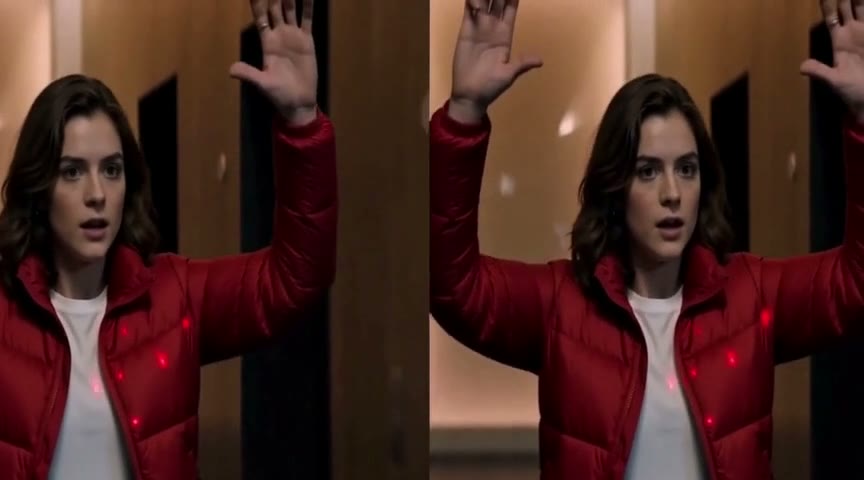
Watch the result — the woman in the red jacket replaces the man in the hallway scene, hands raised, same motion and timing. Recorded with the 5-second, 480p setting; the finished clip runs about 4 seconds.
What is AI character replacement?
AI character replacement swaps an entire person in a video, not just the face. The model reads the photos you upload, builds the new person from them, and renders that person into the target video — matching the original movement, framing, and lighting as closely as it can. The rest of the scene stays as it was.